Get started
Get AltTester® Desktop
You can download AltTester® Desktop from our website.
Upgrade to AltTester® Desktop Pro
You can upgrade the AltTester® Desktop to the Pro version by purchasing a Pro subscription from our website.
Note
After a successful activation, the license will be stored on your device. There’s no need to reactivate the license each time you open the application. AltTester® Desktop will automatically handle activation and deactivation processes upon application open and close, respectively
Get the AltTester® Server
The AltTester® Server is the process your instrumented app and your tests connect to. It is not part of AltTester® Desktop: it is a separate executable that Desktop downloads, starts and stops for you.
The first time you open the Start Server tab without the server installed, AltTester® Desktop
shows a pop-up offering to download it. Press Download and it is installed at:
Windows:
%USERPROFILE%\.alttester\ServermacOS/Linux:
~/.alttester/Server
That is the Path for AltTester® Related Files from the Settings page, so if you change that
path the server is installed under the new one, next to the AltTester® CLI.
Once installed, the server starts automatically the next time you press Start Server.
If the download fails, the pop-up stays open and says why, and Download can be pressed again to
retry. The archive is downloaded to a temporary file first, so a download that fails leaves an
already installed server untouched.
| Message | What to do |
|---|---|
| Couldn't reach the download server. Please check your internet connection and try again. | Check the connection, or the proxy/firewall between you and alttester.com. |
| The download timed out. Your connection may be too slow or unstable to finish it - please try again on a more stable network. | Retry on a more stable network. |
| AltTester® Server isn't available for download right now. Please try again later, or contact us if it keeps happening. | The build for your operating system and architecture is not published. Retry later, or contact us. |
| The download server is temporarily unavailable. Please try again in a few minutes. | alttester.com is having problems. Retry in a few minutes. |
| The download was refused by the server (HTTP status code). Please try again later. | Retry later. |
| The downloaded file was incomplete or corrupted. Please try again. | Retry. |
| AltTester® Desktop isn't allowed to write to folder. Grant write access to that folder, or change the path in Settings, then try again. | Give your user write access to the folder, or change Path for AltTester® Related Files in Settings. |
| Couldn't save AltTester® Server to folder. Check that you have enough free disk space and write access to that folder, then try again. | Free some disk space, or check the folder's permissions. |
| AltTester® Server isn't available for this processor architecture (architecture). | There is no server build for this machine's processor. |
| Something went wrong while downloading AltTester® Server. Please try again - the logs have the details if it keeps failing. | Retry. If it keeps failing, the AltTester® Desktop log has the underlying error. |
What the server actually does, and how to run it yourself instead of letting AltTester® Desktop do it, is covered in AltTester® Server.
Note
When a newer AltTester® Server is published, the same pop-up offers to Update it. The updated server is used the next time you start it.
Note
The Automatically start AltTester® Server on launch setting (on by default, see the Settings section) starts the server when AltTester® Desktop opens, so it is ready before you connect anything. Closing AltTester® Desktop stops the server it started.
Connect to a game build
Prerequisite:
A game instrumented with the latest version of AltTester® Unity SDK. You can find documentation on how to instrument your game on the AltTester® Unity SDK documentation page
Note
The AltTester® Desktop needs all scenes to be included in the build. Even if you are loading your scenes from AssetBundle. Make sure to include all scenes in the build. See also known issues.
Start Server
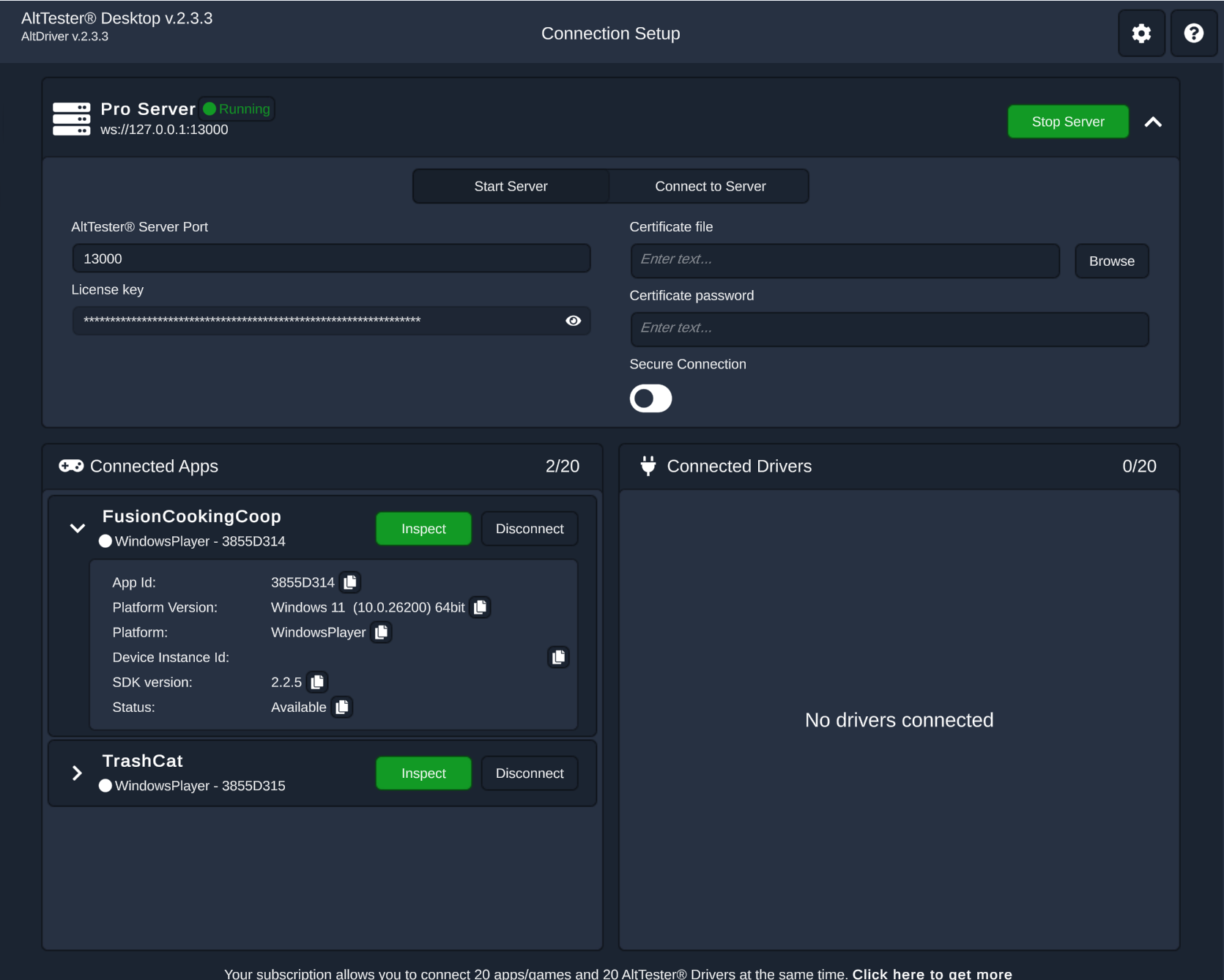
On the Start Server tab, AltTester® Desktop starts an AltTester® Server on this machine and
supervises it. Your instrumented build connects to that server in order to communicate with
AltTester® Desktop.
Start Server/Stop Server: one button that starts or stops the server, following its current state. When a running server has settings waiting to be applied, it readsRestart Server. While a start or stop is in progress it readsCancelorStopping....The server’s name and status: while a server is running, its name says which license it was started with (for example
Pro Server). Next to it, the status readsRunning,Not running, or the transientStarting.../Stopping.... While the server is running, the address it is reachable at is shown underneath:wss://means secure mode (WSS) andws://means non-secure mode (WS).The server settings, expanded and collapsed with the chevron on the right: everything the server is started with.
AltTester® Server Port: should have the same value as your instrumented build’s port.License key: the key the server is started with. The server itself validates it, so a server cannot be started without one. It can only be changed while the server is stopped.Secure Connection: starts the server in secure mode (WSS). The certificate fields below are only used - and only validated - while this is enabled.Certificate fileandCertificate password: the.pfxcertificate the server uses in secure mode. UseBrowseto pick the file. Problems with either field are reported right under it. See Advanced Usage.
Connected AppsandConnected Drivers: shows what is currently connected to the server, with the number of connections your subscription allows shown above each list - see The connected apps list and The connected drivers list. Both lists readWaiting...until the server first reports what is connected, andNo applications found/No drivers connectedwhile they are empty. When the server stops or the connection to it closes, they are emptied and sayNo connection to server. Make sure you have the correct connection data set.
Note
The port, the Secure Connection toggle and the certificate can be changed while the server is running, but they only take effect after a restart. AltTester® Desktop says so in the status line - “Restart required to use port 13001 (2 connections will be dropped)” - and the action button applies the change by restarting the server. Everything connected to it is dropped and reconnects.
Important
If you want to run your tests using the AltTester® Server, start the AltTester® Desktop and make sure that the status next to the server’s name says Running. There is no need to press the Inspect button.
Important
In case you are running your app on a device, make sure both the machine the AltTester® Desktop is running on and the device with the mobile game are in the same network.
Connect to Server
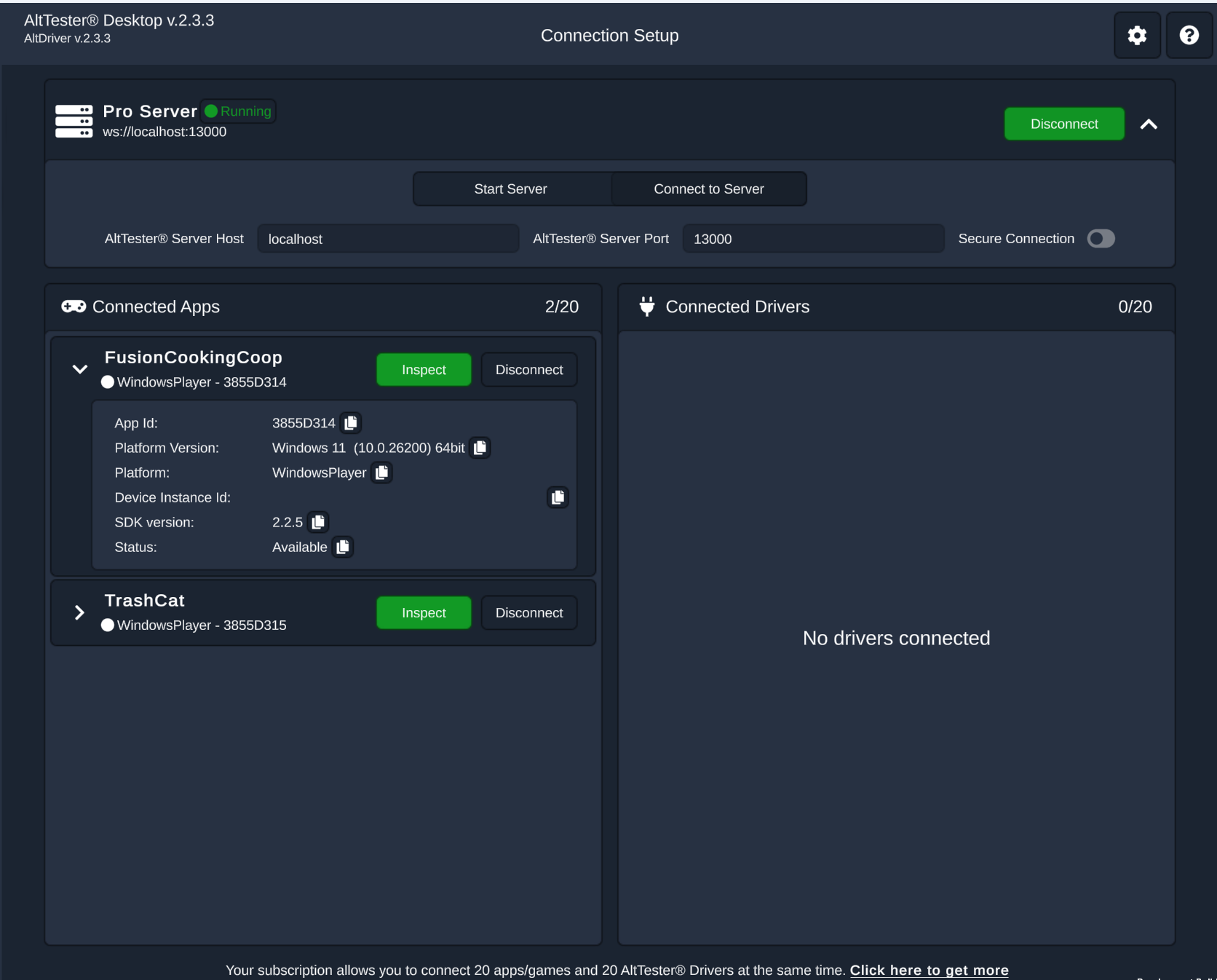
On the Connect to Server tab, AltTester® Desktop connects to a server that it does not manage
itself - one started on another machine, running in the cloud, or started by hand on this one.
AltTester® Server Host: the host the server is running on.AltTester® Server Port: should have the same value as your instrumented build’s port.Secure Connection: enables or disables secure communication when connecting to the server. When enabled, AltTester® Desktop will attempt to connect using a secure WebSocket (wss://). This toggle must be enabled when the server is configured to run in secure mode; otherwise, the connection will fail.Connect/Disconnect: dials the address above, and reports what it finds there - nothing listening, a server that is too old for this version of AltTester® Desktop, or a connection that is later lost.Connected AppsandConnected Drivers: shows what is connected to that server - the same two lists described below.
Note
The two tabs are mutually exclusive: a locally started server has to be stopped before AltTester® Desktop will connect to another one.
The connected apps list
Each connected app has a card in the Connected Apps list:
The card itself shows the app’s name, its platform and its app id, and two buttons:
Inspectopens that app in the Inspector, andDisconnectdrops the app’s connection to the server.The chevron on the left expands the card’s details:
App Id,Platform Version,Platform,Device Instance Id,SDK versionandStatus. Each row has a copy button, so you can paste the value straight into the tests that select which app to run on. A card you expand stays expanded while the list is refreshed.Statustells you what the app is doing right now and whether anything is wrong with it:
| Status | Meaning |
|---|---|
Available |
Connected to the server and ready to be inspected. |
Connecting |
The connection is being established. |
Inspecting |
AltTester® Desktop is currently inspecting this app. |
Waiting for the game engine |
The server has not yet learned which engine the app was built with. |
Not running in the foreground |
The app is in the background, so live update will not work. |
Uses an older SDK |
The app is instrumented with an older SDK, so live update will not work. |
Only one app with an SDK below 2.1.0 can be inspected |
A second app on a pre-2.1.0 SDK cannot be inspected at the same time. |
Important
With our Lite plan, you can connect concurrently to the AltTester® Server a maximum of 1 instrumented app and 1 driver. With our Pro plan, the number of concurrent connections is 2 (for instance, you can have 1 AltTester® Desktop and 1 set of tests, or 2 sets of tests executed in the same time). In case you need more concurrent connections, you can buy more from our site or you can contact us.
The connected drivers list
A driver is anything connected to the server in order to drive an app: your tests through an AltDriver, the AltTester® CLI, the AltTester® AI Extension, and AltTester® Desktop itself while it is inspecting an app.
Each one has a row in the Connected Drivers list:
The row’s title is the driver type -
Desktop,CLI,MCP(the AI Extension) or the type your tests connect with - and underneath it says which app it is driving (Connected to <app id>).Disconnect: drops that driver’s connection to the server. Use it to free a slot when the app you want to inspect is already being driven by someone else.The counter in the list’s header shows how many drivers are connected out of how many your subscription allows. Once it is full the server refuses the next one, and AltTester® Desktop reports
Maximum number of connected drivers reached.
Note
On the Lite plan the Disconnect button is locked and shows a padlock: disconnecting other drivers is a Pro feature.
Note
AltTester® Desktop’s own connection is a driver like any other, but its row is hidden from the connection screen while it is not inspecting anything - it appears while you have that app open in the Inspector.
Connect through IP
Prerequisite:
Start AltTester® Desktop on your machine.
In case you are running the instrumented app on the same machine, the IP displayed in the green popup (inside the app) should be set to 127.0.0.1 (localhost); otherwise, if you are running your app on a device, you have to specify the IP of your machine inside the IP field of the green popup.
After this, press Inspect for the desired instrumented app in the AltTester® Desktop.
Connect through reverse port forwarding
Prerequisite:
An AltTester® Server running on your machine - started from the Start Server tab, with
the status next to the server’s name showing Running, or started yourself (see
AltTester® Server).
Reverse port forwarding lets an app on an Android device reach the AltTester® Server on your
machine through the USB connection. The app connects to 127.0.0.1 on the device, and ADB forwards
that connection to the server’s port on your machine. The server sees it as a connection from the
same machine.
This is how an Android device connects on the Lite plan, because a Lite server only accepts
connections from 127.0.0.1. On a paid plan you can also
connect through IP.
You do not need reverse port forwarding when the instrumented app runs on the same machine as the server.
How to set up reverse port forwarding for Android?
Install ADB and connect the device with USB debugging enabled.
Run
adb reverse tcp:<device_port> tcp:<server_port>, where<device_port>is the port the app connects to and<server_port>is theAltTester® Server Portof the running server. Ex:adb reverse tcp:13000 tcp:13000In the app’s green popup, set the host to
127.0.0.1and the port to<device_port>.When you no longer need it, remove the forwarding with
adb reverse --remove tcp:<device_port>. Ex:adb reverse --remove tcp:13000
The app then appears in the Connected Apps list. Press Inspect on its card to open it in the
Inspector.
Note
If you change the server’s port, run adb reverse again with the new <server_port>.
Note
Reverse port forwarding is not available on iOS with iProxy. To connect an app running on an
iPhone, use Connect through IP instead. This needs a paid plan, because a Lite server only
accepts connections from 127.0.0.1.